Best Settings for Titan Battlefronts
Tune Roblox graphics and camera so held beams, shift-lock swaps, and PVE objectives stay readable.
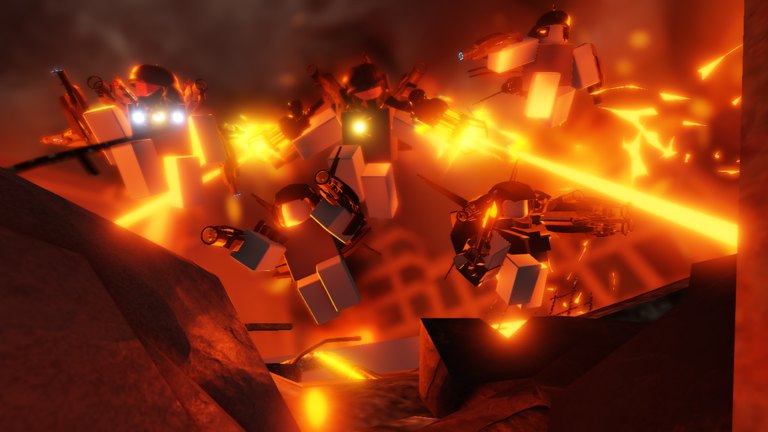
Settings that actually matter in this battlegrounds
Titan Battlefronts is a MorphToR6 fighter where camera aim and ability VFX density decide fights. Fancy shaders will not fix early channel releases. Use this page to keep enemy silhouettes readable while you practice the official tips covered in Controls and How to Aim.
Recommended Roblox graphics profile
| Setting | Suggestion | Why |
|---|---|---|
| Graphics mode | Manual | Stops automatic spikes mid-fight |
| Graphics quality | 3–6 on mid PCs / 1–3 on low phones | Cuts particle fog on beams |
| Shadows | Off or low | Morph outlines stay clearer |
| Effects / particles | Lower first | Channel VFX can hide telegraphs |
| VSync | Off if you notice input lag | Faster camera corrections |
| Frame rate cap | Match your display | Smooth strafes beat unlocked stutter |
Re-test after every major title-tag change listed on Updates — new PVE props can tank FPS.
Camera and sensitivity
- Lower sensitivity until you can track a strafing morph without overshooting.
- Raise it only after your aim drills feel slow, not before.
- On trackpads, prioritize a mouse; Titan Battlefronts is aim-forward.
- Mobile: landscape + camera-drag aim; details in Mobile Guide.
Audio as a competitive setting
Many morphs telegraph before the projectile lands. Keep game SFX audible and music low. Headphones beat laptop speakers in twenty-player lobbies. If PVE & Crafts is live, audio also helps call objective starts for teammates.
Shift lock is a setting habit, not a menu toggle only
Treat Roblox shift lock as a combat stance:
- Melee trades → on
- Skillshots / beams → off
- Transition mid-fight when the kit demands it
Practice that toggle until it is under half a second. Settings pages cannot replace muscle memory from How to Play.
Private Server tuning
If you own Private Server+, rehearse settings changes there before public ranked-feeling lobbies. See Private Servers and Game Passes.
Performance red flags
- Beams cut short because the client hitch made you release early → lower effects.
- You lose enemies inside particle mush → drop graphics quality one step.
- Mobile overheating → close background apps, reduce quality, shorter sessions.
Do not import Blockade Battlefront keybind sheets
“Titan Shop on Q” advice belongs to a different game. Confirm you are on place ID 99434377300701 via Not Blockade before remapping anything exotic.
Session checklist
- Apply the graphics table.
- Run one movement-only match.
- Run one hold-to-channel match.
- Only then chase Clock Chief or pass morphs like Injured Hero.
Clean settings buy you readability. Skill still comes from holding channels and choosing morphs with a plan on the Tier List Hub.
Network and background noise
Close browser tabs that stream 4K video while you queue. Roblox plus a heavy download will hitch exactly when you need a full channel hold. On Wi‑Fi, prefer 5 GHz near the router during PVE objective windows. If ping spikes, shorten sessions rather than buying a pass morph to “fix lag.”
Accessibility extras
Increase UI scale if ability buttons are hard to hold on mobile. Colorblind modes in Roblox settings help Alliance silhouettes pop against busy maps. Pair that with the audio advice above so you are not relying on a single sensory channel when twenty players dump VFX at once.
Closing notes for Best Settings for Titan Battlefronts
After the next PVE or rebalance tag, re-check FPS on a crowded server, then keep the lowest graphics preset that still lets you read enemy morphs clearly.
Frequently Asked Questions
Quick answers for Titan Battlefronts players.
What graphics level is best for Titan Battlefronts?
Use the lowest manual preset that still shows enemy morphs clearly—usually mid-low so beam VFX do not hide telegraphs.
Should I turn VSync on?
If camera aim feels delayed, turn VSync off and cap FPS to your monitor refresh rate.
Do mobile players need different settings?
Yes. Prefer landscape, lower effects, and camera-drag aim. See the Mobile Guide.
Will settings replace Game Passes?
No. Settings improve readability; passes change kits. Learn free morphs first.